Created a game menu yesterday in Illustrator. All vectors. Used Illustrator's 3D effects feature to get most of these shapes. Learned a lot about using every panel, organizing selections, and exporting efficient .jpegs when uniting paths with pathfinder.
Tuesday, November 26, 2019
Saturday, November 9, 2019
Problems (11/09/2019)
Increasing and Decreasing Concentric and Radial Dividers on the Polar Grid Tool
-I've been learning how to integrate this in my work flow but, I can seem to figure out how to increase and decrease dividers upon after scaling the polar grid. A tutorial showed me that the arrow keys were suppose to increase and decrease them but, It didn't work on my computer.
Can't Find Swatches in Swatches Panel
-Select all swatches from a folder by clicking the first and shift+clicking the last swatch. On the drop down menu on the right of the panel select "Add to Swatches". The Swatches are now added to your swatches panel.
Transforming (scale, rotate, etc.) the Graph
-Object > Ungroup
-Objects can now be transformed in groups.
-Data no longer editable
-Another option is to use the scale tool to transform the entire graph while still retaining the option to edit it's data.
-I've been learning how to integrate this in my work flow but, I can seem to figure out how to increase and decrease dividers upon after scaling the polar grid. A tutorial showed me that the arrow keys were suppose to increase and decrease them but, It didn't work on my computer.
Can't Find Swatches in Swatches Panel
-Select all swatches from a folder by clicking the first and shift+clicking the last swatch. On the drop down menu on the right of the panel select "Add to Swatches". The Swatches are now added to your swatches panel.
Transforming (scale, rotate, etc.) the Graph
-Object > Ungroup
-Objects can now be transformed in groups.
-Data no longer editable
-Another option is to use the scale tool to transform the entire graph while still retaining the option to edit it's data.
Select > Same > Fill Color
-Fills all shapes with color that are similar
i.e. graph bars and circle. direct select shape with color and then, follow through with these steps.
UI Icons - Study Guide
Location:
C:\Users\Will.000\Desktop\Illustrator - Tutorials\UI Icons - Study
Isolate Selected Object
Draw Normal
Draw Behind
Draw Inside
C:\Users\Will.000\Desktop\Illustrator - Tutorials\UI Icons - Study
Isolate Selected Object
Draw Normal
Draw Behind
Draw Inside
Friday, November 1, 2019
What are contextual alternates?
Contextual alternates are alternate characters included in some script typefaces to provide better joining behavior. For example, when using Caflisch Script Pro with contextual alternates enabled, the letter pair “bl” in the word “bloom” is joined so that it looks more like handwriting.

Image Source:
https://www.typenetwork.com/news/article/opentype-at-work-contextual-alternates
Source:
https://helpx.adobe.com/illustrator/using/arabic-hebrew.html

Image Source:
https://www.typenetwork.com/news/article/opentype-at-work-contextual-alternates
Source:
https://helpx.adobe.com/illustrator/using/arabic-hebrew.html
What are Ligatures?
Ligatures are typographic replacement characters for certain letter pairs. Most fonts include ligatures for standard letter pairs such as fi, fl, ff, ffi, and ffl.
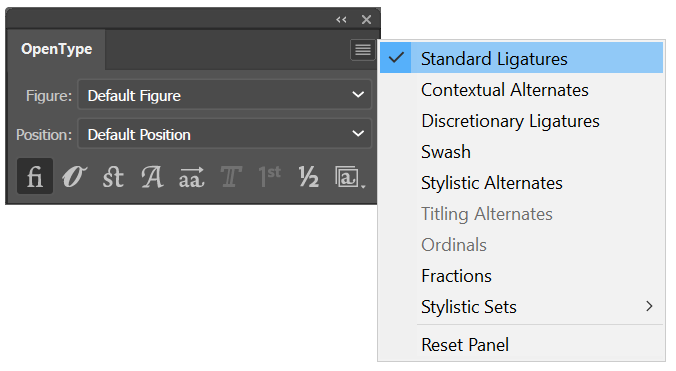
Image Source:
https://helpx.adobe.com/illustrator/using/arabic-hebrew.html

Image Source:
https://www.typenetwork.com/news/article/opentype-at-work-contextual-alternates
"Ligatures and contextual alternates basically serve the same purpose: they offer solutions for problematic or unwieldy glyph sequences. Although their name implies that they connect two or more glyphs, some ligatures actually solve problems by shortening letter parts, exactly like some contextual alternates do. So why are they two distinct features? The fundamental difference between them is that ligatures replace two or more glyphs with one combined glyph, while contextual alternates only change the appearance of one glyph at a time. A ligature typically resolves one single awkward glyph combination; a contextual alternate can offer solutions for many different graceless scenarios."
*contextual alternates only change two or more glyphs at a time.
*ligatures replace two or more glyphs with one combined glyph
What is a glyph?
A Glyph is a stylic set that can be applied to a group of characters.
SOURCE:
https://helpx.adobe.com/illustrator/using/special-characters.html

Image Source:
https://helpx.adobe.com/illustrator/using/arabic-hebrew.html
Image Source:
https://www.typenetwork.com/news/article/opentype-at-work-contextual-alternates
"Ligatures and contextual alternates basically serve the same purpose: they offer solutions for problematic or unwieldy glyph sequences. Although their name implies that they connect two or more glyphs, some ligatures actually solve problems by shortening letter parts, exactly like some contextual alternates do. So why are they two distinct features? The fundamental difference between them is that ligatures replace two or more glyphs with one combined glyph, while contextual alternates only change the appearance of one glyph at a time. A ligature typically resolves one single awkward glyph combination; a contextual alternate can offer solutions for many different graceless scenarios."
*contextual alternates only change two or more glyphs at a time.
*ligatures replace two or more glyphs with one combined glyph
What is a glyph?
A Glyph is a stylic set that can be applied to a group of characters.
SOURCE:
https://helpx.adobe.com/illustrator/using/special-characters.html
Subscribe to:
Posts (Atom)


