Flashcards:
https://www.cram.com/flashcards/memorize/illustrator-selections-11043582
Isolation Mode
Lets you quickly isolate a layer, sublayer, path, or group of objects, from all other art in your document. When in isolation mode, all nonisolated objects in the document appear dimmed and are not selectable or editable.
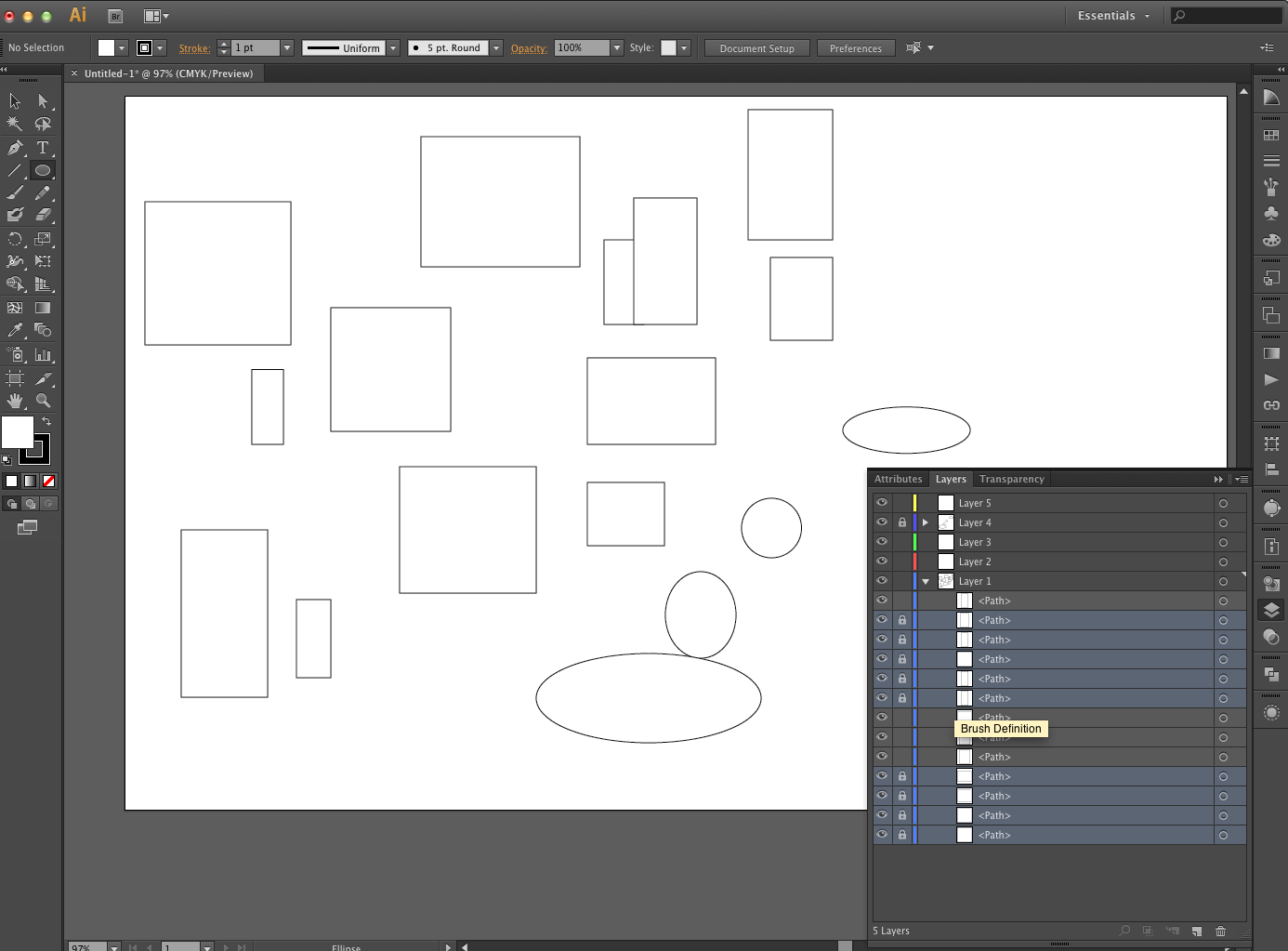
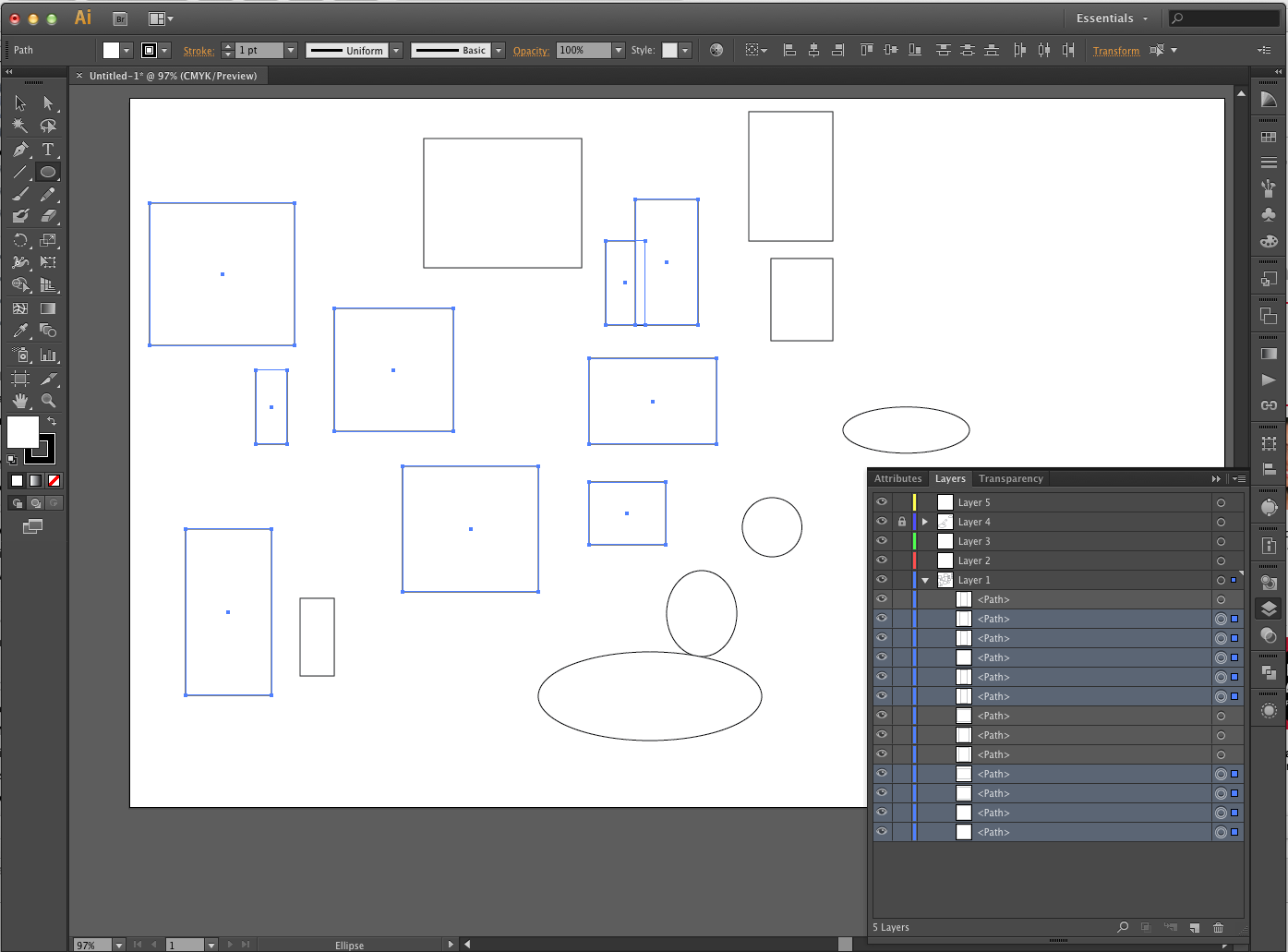
Layers Panel
Lets you quickly and precisely select individual or multiple objects. You can select a single object (even if it’s in a group), all objects within a layer, and entire groups.
Selection tool
Lets you select objects and groups by clicking or dragging over them. You can also select groups within groups and objects within groups.
Direct Selection tool
Lets you select individual anchor points or path segments by clicking on them, or select an entire path or group by selecting any other spot on the item. You can also select one or more objects in a group of objects.note: When in outline mode, the Direct Selection tool may select imported graphics that are near the tool’s pointer. To avoid selecting unwanted graphics, lock or hide the graphics before making the selection.
Group Selection tool
Lets you select an object within a group, a single group within multiple groups, or a set of groups within the artwork. Each additional click adds all objects from the next group in the hierarchy.
Perspective Selection tool
Lets you bring objects and text in perspective, switch active planes, move objects in perspective, and move objects in perpendicular direction.
Lasso tool
Lets you select objects, anchor points, or path segments by dragging around all or part of the object.
Magic Wand tool
Lets you select objects of the same color, stroke weight, stroke color, opacity, or blending mode by clicking the object.
Live Paint Selection tool
Lets you select faces (areas enclosed by paths) and edges (portions of paths between intersections) of Live Paint groups.
Selection commands
(located in the Select menu) Let you quickly select or deselect all objects, and select objects based on their position relative to other objects. You can select all objects of a specific type or that share specific attributes, and save or load selections. You can also select all objects in the active artboard.
Save Selection
Allows you to save a selection of objects by naming the selection, and returning to it upon after clicking select > [name].
SOURCE:
https://helpx.adobe.com/illustrator/using/selecting-objects.html